
Access Sales Reports by going to Sales > Sales Reports in eDesign.
Sales Reports Guide
The PDF guide linked below provides details on all the available report types.
Open PDF of Sales Reports Guide
The Sales Report Screen
Every Sales Report shares the same set of controls. The screen below shows Yearbook Sales > All Sales as an example, but the interface is identical across all report areas.
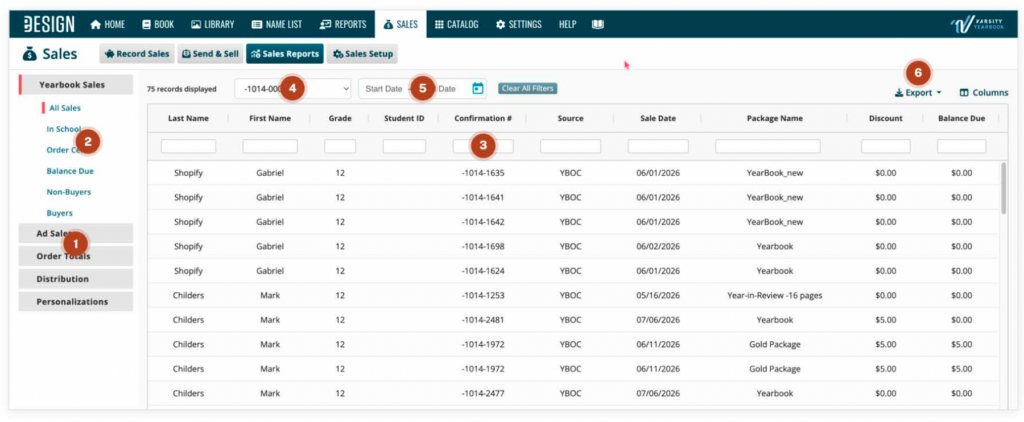
- Side tabs — Navigate between report areas: Yearbook Sales, Ad Sales, Order Totals, Distribution, Personalizations.
- Report Type selector — Switch between the individual reports within the selected area.
- Filterable table columns — Enter text in any column’s field to narrow results. Clear All Filters resets every column at once.
- Report Year selector — View data for a specific publication year.
- Date Range filter — Limit results to a start and end date, where applicable.
- Export menu — Download the current view as CSV. (PDF export is coming soon.)
Export filenames include the job number with publication year, the report name, and the export date/time — for example:
12345-2026-All Sales-2026-08-12.csv